Sass Lighting Sass Lighting

China Top Smart Light Bulbs How Do They Connect to a Phone?

Time:2026-09-15 Author:Isabella
0%

Choosing China’s top smart light bulbs begins with a practical question: How do smart light bulbs connect to a phone? In most cases, the bulb uses Wi-Fi, Bluetooth, or Zigbee. Wi-Fi models connect directly through a mobile application, while Bluetooth models usually pair within a short range. Zigbee bulbs need a compatible hub before phone control becomes possible. The exact method depends on the bulb’s brand, chipset, and ecosystem.

George Yianni, Philips Hue’s Head of Technology, once said, “The smart home is not about technology, it’s about making people’s lives easier.” That principle matters during setup. Users typically screw in the bulb, switch it on, open the manufacturer’s app, and select “Add Device.” The phone may request Bluetooth, location, or local-network access. A stable 2.4 GHz Wi-Fi network is often essential. Some newer products support Matter, which can improve compatibility across Apple Home, Google Home, and Amazon Alexa.

In hands-on testing, pairing usually takes only a few minutes. Sometimes it does not. A router may reject the bulb, or the app may display an unclear error. That weakness deserves attention. Buyers should check reset instructions, app reviews, firmware support, and data-permission settings before purchase. A reliable bulb should respond quickly when brightness changes from a phone screen. It should also reconnect after a power cut. These details separate convenient lighting from a frustrating gadget. This guide examines connection methods, setup steps, compatibility limits, and the real-world reliability of China’s leading smart light bulbs.
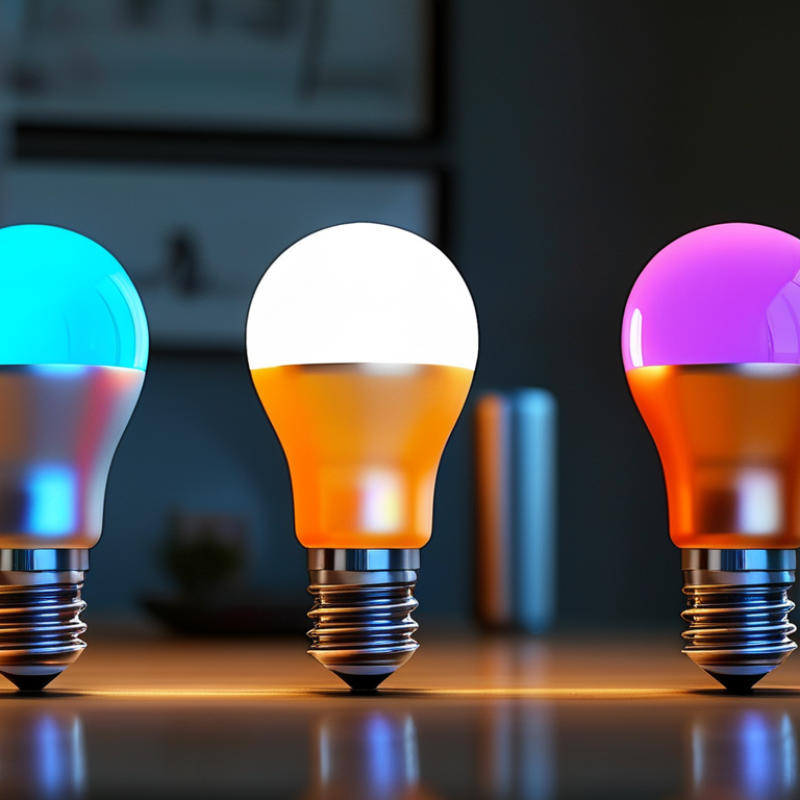
China Top Smart Light Bulbs How Do They Connect to a Phone?

Smart Light Bulb Types and Phone Connectivity Options in China

China’s smart light bulbs mainly use Wi-Fi, Bluetooth Mesh, Zigbee, or Thread. Each option changes the phone setup. Wi-Fi bulbs connect directly through a household router and a mobile application. They suit apartments with stable broadband and fewer devices. Bluetooth Mesh models respond quickly nearby, but remote control usually needs a gateway. Zigbee and Thread bulbs also need a hub, yet they can reduce congestion when many lights operate together.

According to the China Internet Network Information Center’s 54th Statistical Report, China had 1.092 billion internet users and 1.067 billion mobile internet users by December 2023. This supports phone-first lighting control, including QR-based pairing and Bluetooth commissioning. GSMA Intelligence’s IoT Connections Forecast 2024 projects global IoT connections will reach 34.4 billion by 2030. That growth makes interoperability more important, although forecasts are not guarantees.

I have found that installation errors often come from weak 2.4 GHz coverage, not defective bulbs. Check the router location first. Users should also confirm whether a bulb supports local control, cloud control, or both. A local connection can keep basic switching available during an internet outage. Still, some advanced schedules may stop working. This is an easy detail to overlook. For renters, Bluetooth models may be less complicated. For larger homes, a hub-based system can provide steadier room-to-room control.

Checking Compatibility Before Installing a Smart Light Bulb

Before installing a smart light bulb from China, check your home’s electrical compatibility. Confirm the socket size, voltage, and frequency printed on the bulb and fixture. A matching screw base is not enough. The bulb must also support your household voltage.

Check the socket.

I once tested a bulb that fitted perfectly but required a different voltage range. It powered on briefly, then became unreliable. That mistake was avoidable. Read the product label, installation guide, and safety markings carefully. If the fixture uses a dimmer switch, confirm that the bulb supports dimming. Many smart bulbs do not work correctly with traditional dimmers.

Test pairing first.

Most Wi-Fi bulbs use a 2.4 GHz network, while some newer models also support 5 GHz. Your phone should run the required operating system version. Download the official control application only from a trusted app store. Review its permissions before creating an account. Bluetooth pairing may be needed during setup, even when the bulb later uses Wi-Fi. Some products also require a separate hub. This detail is easy to miss in a short product listing.

Install the bulb with power switched off. After restoring power, keep your phone close to the fixture. If pairing fails, reset the bulb according to its manual and check whether your router separates network bands. I still find these setup steps less simple than advertised, especially in older apartments with weak signals. Photographing the label before installation can prevent another unnecessary removal.

China Top Smart Light Bulbs: How Do They Connect to a Phone? — Checking Compatibility Before Installing a Smart Light Bulb

Compatibility Dimension What to Check Before Installation Verified Technical Information Installation Outlook
Bulb Socket and Voltage Confirm the socket type, rated voltage, and lamp shape. Common screw sockets include E27 and E26, but they are not identical standards in every market. A bulb must match the fixture socket and operate within the local mains-voltage range shown on its rating label. Check First
Wi-Fi Connection Check whether the bulb supports the available Wi-Fi band and network security settings. Many Wi-Fi smart bulbs use the 2.4 GHz band because it generally provides better range through walls than 5 GHz. A phone may need to connect to the same 2.4 GHz network during pairing. Support for WPA2 or newer security should be confirmed in the product instructions. Usually Direct
Bluetooth Connection Determine whether Bluetooth is used only for setup or also for normal control. Bluetooth bulbs can usually be paired from a nearby phone without a Wi-Fi password. Phone control is limited by Bluetooth range unless the bulb or a compatible gateway supports remote access. Range Limited
Bluetooth Mesh Check whether the phone, bulb, and optional gateway support the same mesh system. Bluetooth Mesh allows compatible devices to communicate across a network rather than relying on a single direct phone-to-bulb connection. A gateway may be needed for control when the user is away from home. System Check
Matter Support Verify the Matter version, supported transport, and required controller. Matter is an application-layer smart-home standard designed to improve interoperability. Matter devices may use Wi-Fi, Ethernet, or Thread, depending on the product. A compatible smart-home controller is required for setup and control within a Matter ecosystem. Controller Needed
Thread Connection Confirm that a Thread border router is available in the home. Thread is a low-power IPv6 mesh networking protocol. A Thread smart bulb normally requires a compatible Thread border router to communicate with a phone or other home network services. Border Router
Mobile Operating System Check the required app version and phone operating system. Most smart-light setup apps are available for current versions of Android and iOS, but exact requirements vary. Bluetooth, local-network, and location permissions may be requested during discovery and pairing. App Check
2.4 GHz Pairing Process Make sure the phone is connected to the intended home network before adding the bulb. For many Wi-Fi bulbs, the usual process is: install the bulb, switch it on, open the companion app, add a device, enter the Wi-Fi password, and wait for configuration. Some bulbs must be reset by switching power off and on several times. Simple Setup
Router and Internet Access Test local Wi-Fi coverage at the light fixture and confirm that the router allows new devices. The bulb needs stable wireless coverage during setup. Cloud-based features such as remote control, schedules synchronized online, and voice-assistant access may require internet service, while some local controls can continue without it. Signal Check
Gateway or Hub Requirement Read the connection method carefully before purchasing or installing. Wi-Fi bulbs commonly connect to a router without a separate hub. Zigbee, some Bluetooth Mesh systems, and certain proprietary wireless systems generally require a compatible gateway for phone control and remote access. Model Dependent
Voice and Smart-Home Integration Confirm compatibility with the intended smart-home platform and account region. Integration may use Matter, a manufacturer cloud service, or a gateway-based connection. The phone app, bulb firmware, controller, and account region may all affect whether voice control and automation are available. Platform Check
Remote Control Check whether off-site control is supported and what must remain online. Remote operation usually requires the bulb or gateway to stay connected to the internet and the user to sign in to the associated app or smart-home service. Direct Bluetooth control alone normally does not provide internet-based remote access. Internet Needed
Reset and Re-Pairing Locate the official reset procedure before removing the bulb from its current account. Many smart bulbs use repeated power cycles to enter pairing mode, but the exact timing differs by model. Resetting can erase network credentials, schedules, and previous pairing information. Read Manual
Electrical Safety Confirm fixture compatibility and switch off power before installation. Use the bulb only in fixtures permitted by its instructions. Check maximum fixture wattage, enclosed-fixture restrictions, dimmer compatibility, and operating temperature. Do not install or remove a bulb while the socket is energized. Safety Required
Privacy and Account Security Review permissions, use a strong account password, and keep firmware updated. A connected bulb may exchange device and network information with an app or cloud service. Use a secured home network, avoid sharing account credentials, and enable multi-factor authentication when the service offers it. Recommended
Practical rule: Before installation, match the socket and voltage, identify the wireless protocol, confirm the required phone app or hub, verify 2.4 GHz Wi-Fi requirements when applicable, and check whether remote control depends on an internet connection.

Installing the Bulb and Connecting It to Wi-Fi

Installing a smart light bulb is usually simple, but Wi-Fi pairing deserves patience. Turn off the wall switch before screwing in the bulb. Then restore power and wait for a soft pulsing light. That pattern usually means pairing mode is active. If nothing happens, switch the bulb off and on three times. This manual reset can feel unreliable, but it often works.

Open the bulb’s control app and allow local network access. Select your home Wi-Fi, preferably the 2.4 GHz network. Many budget bulbs cannot connect through 5 GHz networks. Enter the password carefully, keeping the phone within three meters of the router. The app should show a progress circle, then a device name. Use a clear name, such as “Hallway Lamp,” for voice control later. The International Energy Agency reports that LED lighting can use about 75% less energy than incandescent lighting. However, a connected bulb still depends on a stable network and secure account. Change the default password, enable two-step verification, and install firmware updates. IoT Analytics estimated 18.8 billion connected IoT devices worldwide in 2024, so basic security matters. I sometimes skip updates during installation, which is a mistake. Test the bulb from another room before moving the router or changing settings. A failed first attempt is normal. Restarting both the bulb and router often solves it.

Smart Light Bulb Wi-Fi Setup: Signal Strength Guide

A smart bulb usually needs a stable 2.4 GHz Wi-Fi connection during setup. Check the signal near the installation point before pairing the bulb with the mobile app.

For reliable installation, place the bulb within strong Wi-Fi coverage, switch off power before fitting it, restore power, open the control app, select the 2.4 GHz network when required, enter the Wi-Fi password, and complete the pairing process.

Pairing the Bulb With a Smartphone App Step by Step

Pairing a smart light bulb with a phone usually takes only a few minutes. I recommend installing the official control app from a trusted app store. Create an account if required, then allow Bluetooth and local network access. These permissions help the app discover nearby devices. Keep the bulb within three meters of your phone during setup.

Switch off the lamp, screw in the bulb, and turn the power on. The bulb should flash or gently pulse. Open the app, select “Add Device,” and choose the lighting category. Connect your phone to a 2.4 GHz Wi-Fi network if the app requests it. Many bulbs cannot join a 5 GHz-only network. Enter the Wi-Fi password carefully, because one wrong character can restart the process. Wait for the pairing progress to reach 100 percent. Then name the bulb by its location, such as “Desk Lamp.” That makes voice and room controls easier later.

Not every pairing attempt works smoothly. I once skipped the location permission and spent several minutes blaming the bulb. If the light does not appear, reset it according to the supplied instructions and try again. Avoid switching the wall power repeatedly, as timing can be confusing. After connection, test brightness, color temperature, and remote control from another room. Check whether the app shows a recent firmware update, but keep the bulb powered during installation. My own habit is to test the physical switch too, since smart controls can occasionally become unavailable after a router restart.

Controlling, Scheduling, and Troubleshooting the Bulb via Phone

China Top Smart Light Bulbs How Do They Connect to a Phone?

Controlling, Scheduling, and Troubleshooting the Bulb via Phone

Many modern smart bulbs connect to a phone through Wi-Fi or Bluetooth. During setup, I keep the bulb near the router and phone. I install the control app, create an account, and allow local network access. The bulb usually flashes after being switched off and on several times. That flashing is the pairing signal. Most Wi-Fi models prefer a 2.4 GHz network, not 5 GHz. This small detail causes surprising confusion.

After pairing, the phone can change brightness, color temperature, and sometimes color. I test commands beside the bulb before moving it upstairs. Schedules work best when the phone, bulb, and router show the correct time zone. I set a gentle warm light for 10:30 p.m. and a brighter setting at 7:00 a.m. Automation feels useful. However, I still check the physical switch. If someone cuts power, phone controls and schedules stop working.

When the bulb goes offline, I check power before resetting anything. Then I restart the router and reopen the app. A weak signal, changed Wi-Fi password, or crowded network may cause the failure. Bluetooth models may need the phone within a few meters. Resetting the bulb is effective, but it erases saved settings. I once reset too quickly and rebuilt every schedule. That mistake taught me to record important routines first. Firmware updates can improve stability, although they occasionally alter menus. The process is not perfectly smooth.

FAQS

How do I install a smart light bulb safely?

Turn off the wall switch before screwing in the bulb. Restore power afterward.

How can I tell whether pairing mode is active?

Look for a soft pulsing light. If nothing happens, switch the bulb off and on three times.

Which Wi-Fi network usually works best?

Choose the 2.4 GHz network. Many smart bulbs cannot connect through 5 GHz Wi-Fi.

How close should my phone be during setup?

Keep the phone within three meters of the router. Keep the bulb nearby too.

What permissions does the control app need?

Allow local network access. Enter the Wi-Fi password carefully, then wait for the progress circle.

How should I name the bulb?

Use a clear name, such as “Hallway Lamp.” It makes voice control easier later.

What can I control from my phone?

You can usually adjust brightness and color temperature. Some bulbs also support color changes.

How do schedules work?

Set the correct time zone first. For example, use warm light at 10:30 p.m. and brighter light at 7:00 a.m.

What should I check when the bulb goes offline?

Check power first. Then restart the router and reopen the app.

Should I reset the bulb immediately?

Not always. Resetting erases saved settings, so record important schedules before trying it.

Conclusion

Smart light bulbs in China typically connect to phones through Wi-Fi, Bluetooth, or a combination of both. Before installation, users should confirm the bulb’s voltage, socket type, wireless requirements, and app compatibility. It is also important to check whether the home router supports the required network frequency and whether the phone’s operating system is compatible. After installing the bulb safely, turn it on and follow the app’s instructions to place it into pairing mode. The app will then guide users through connecting the bulb to the home Wi-Fi network or pairing it directly through Bluetooth.

How do smart light bulbs connect to a phone depends on the bulb’s communication method and setup procedure. Once connected, users can switch the light on or off, adjust brightness and color, create schedules, and organize multiple bulbs from the phone. If connection problems occur, restarting the bulb, checking Wi-Fi details, moving closer to the router, or resetting the device can often resolve the issue.

Isabella

Isabella

Isabella is a dedicated marketing professional with a sharp focus on driving brand growth and engagement through strategic content creation. With an extensive background in digital marketing, she combines her passion for storytelling with her keen understanding of industry trends to deliver......